BigCommerce apps › Free Shipping Bar
Free Shipping Bar: install and setup guide
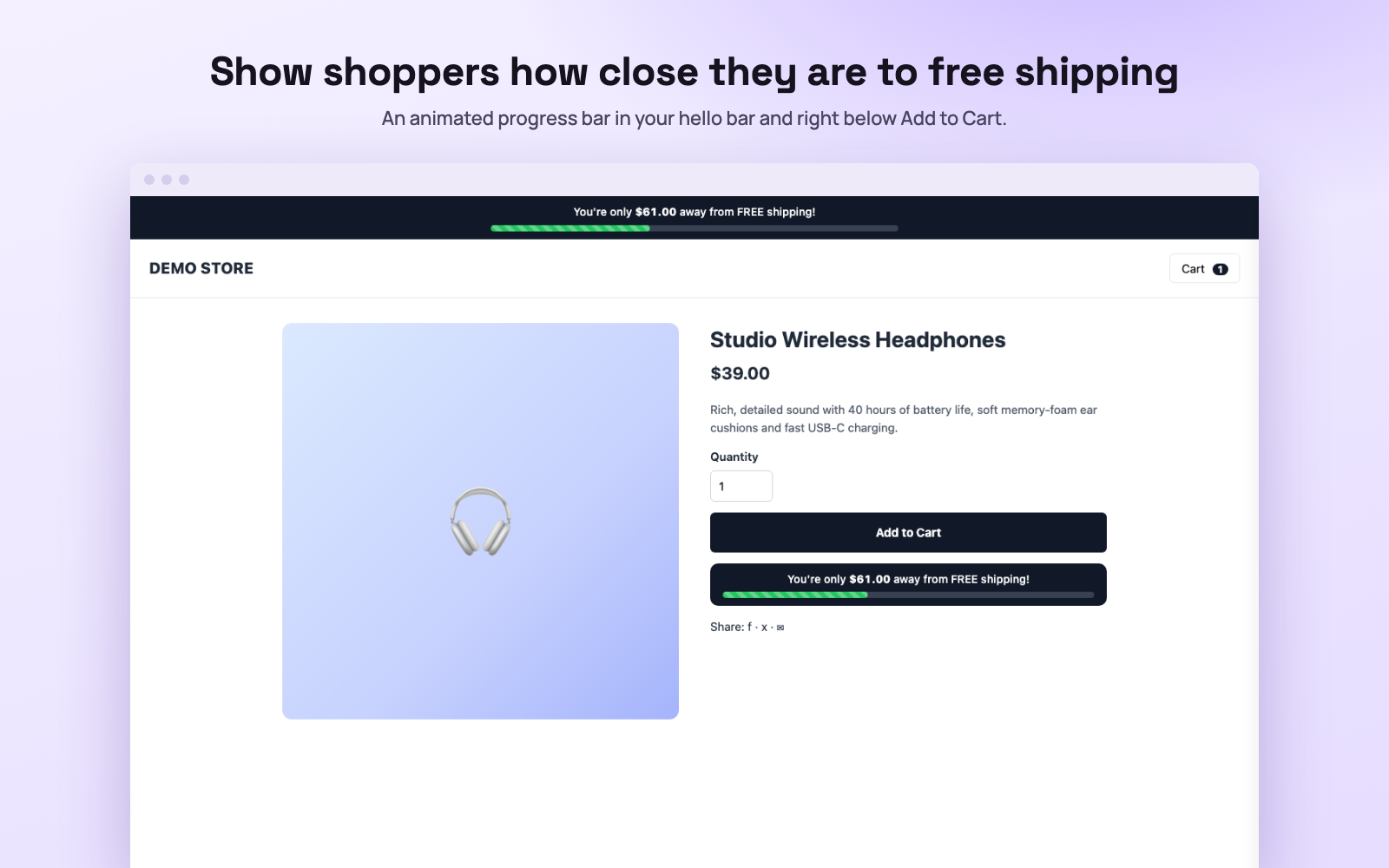
Show shoppers how close they are to free shipping, on any Stencil theme, with no theme edits.
Install
You need a BigCommerce store and to be its owner, or a user allowed to install apps. Installing takes about a minute.
- In your BigCommerce control panel, go to Apps › Marketplace and search for Free Shipping Bar.
- Click Get this app, then Install.
- BigCommerce asks you to approve two permissions: manage storefront scripts, so the app can add its own script to your storefront, and read store settings, so it can use your currencies and exchange rates. It can’t read your orders, customers or products.
- Click Confirm. The app opens on its settings page inside your control panel. No separate account or login is needed.
The app works with Cornerstone and most Stencil themes. Headless storefronts, including Catalyst, are not supported.
Setup
Open the app any time from Apps › My Apps › Free Shipping Bar. Every change shows in the live preview before you save.
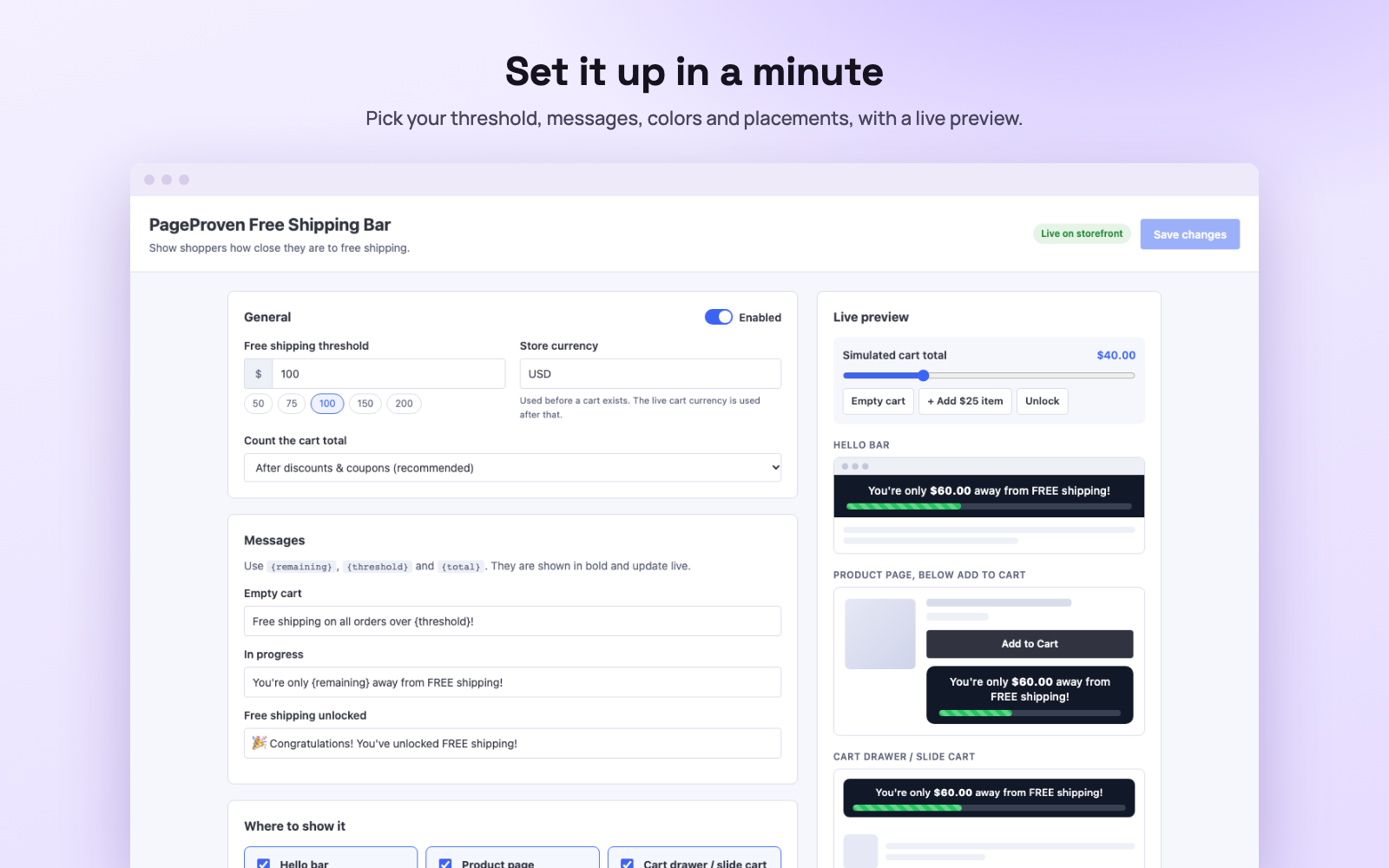
- Turn the bar on with the Enabled switch in General.
- Enter your free shipping threshold, or pick 50, 75, 100, 150 or 200. Set Store currency to your default currency: it’s used before a shopper has a cart, then the cart’s own currency is used.
- Choose how the cart total is counted. After discounts & coupons is recommended, and should match how your free shipping rule counts it.
- Choose where the bar appears under Where to show it (see below).
- Edit the messages and colors if you want to, then click Save.
- Open your storefront. The bar appears within about a minute.
- Set up the matching free shipping rule in BigCommerce, so checkout gives the free shipping the bar promises (see Match it at checkout).
Where the bar shows
Turn each placement on or off. Most stores use all three.
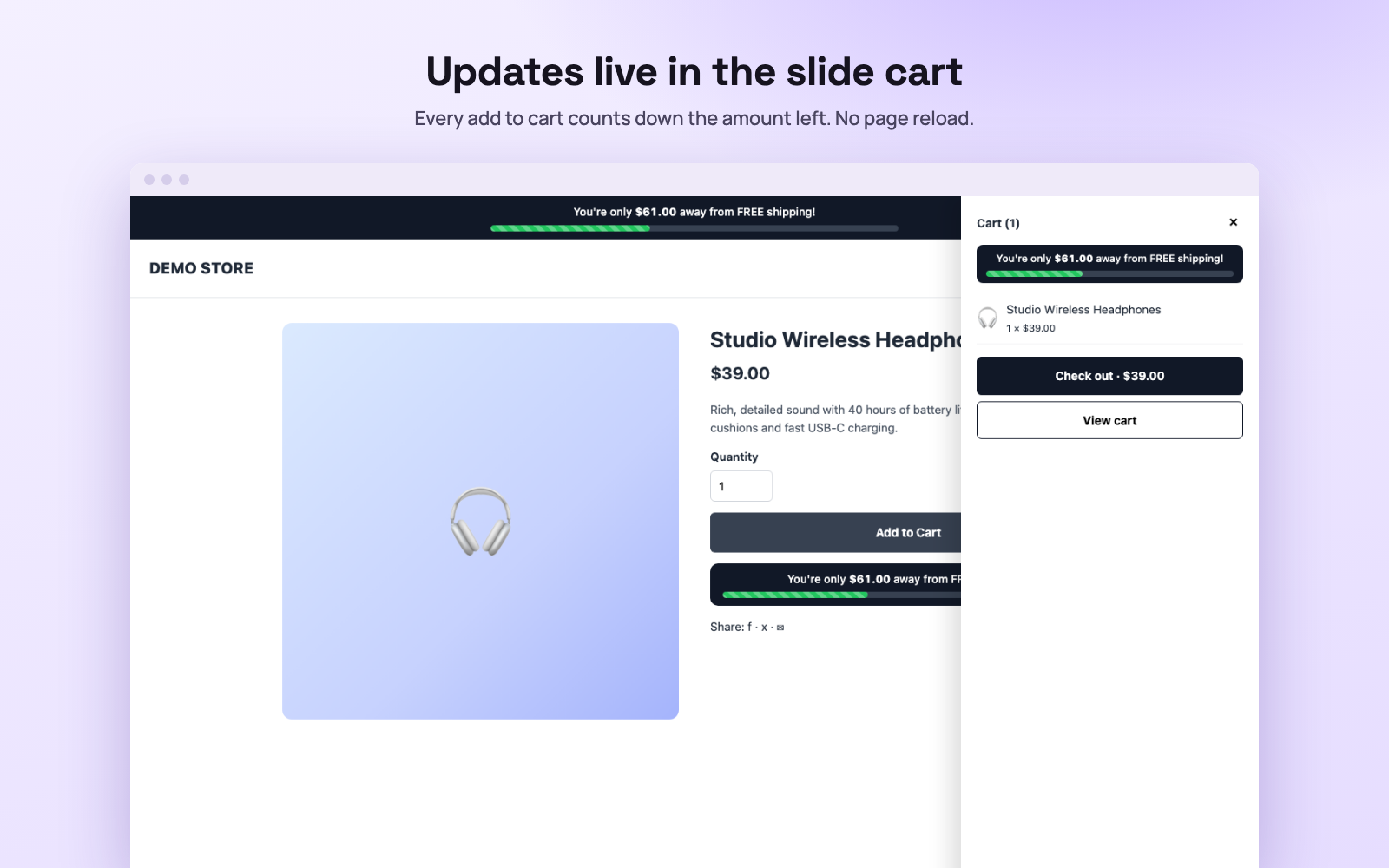
- Hello barA thin bar at the top of every page.
- Below Add to CartOn product pages, right under the Add to Cart button, where shoppers decide.
- Slide cartAt the top of the cart preview that opens when a product is added. It updates straight away.
Messages and look
The bar has three messages. Use {remaining} for the amount left, {threshold} for your free shipping amount and {total} for the cart total. They show in bold and update live.
- Empty cartFor example: “Free shipping on all orders over {threshold}!”
- In progressFor example: “You’re only {remaining} away from FREE shipping!”
- Free shipping unlockedFor example: “Congratulations! You’ve unlocked FREE shipping!”, shown with a short confetti burst.
You can also change the bar and text colors, the progress animation and the font size.
Match it at checkout
The bar shows the offer; BigCommerce applies it. The app never changes your prices, shipping or checkout, so set up the free shipping rule with the same amount you entered in the app:
- In the control panel, go to Settings › Shipping.
- Open the shipping zone your customers are in, for example your home country, and click Edit.
- Turn on Free shipping and set the minimum order to the same amount, for example 50.
- Save, then place a test order above and below that amount to check the shipping options at checkout.
If you ship to several zones, repeat this for each zone where you offer free shipping. Check whether the zone uses the subtotal before or after discounts, and set the app’s Count the cart total the same way, so a coupon doesn’t make the bar and checkout disagree.
Troubleshooting
The bar doesn’t show on my storefront
Check the switch at the top of the settings is on and at least one placement is turned on, then save. Wait a minute and reload the storefront in a private window, so your browser doesn’t show an old copy.
It shows in the hello bar but not in the slide cart
Some themes build their slide cart differently. Open Advanced settings in the app and enter where your theme’s cart preview sits. Email us with your store address if you’re not sure, and we’ll find it for you.
The bar says free shipping, but checkout charges shipping
The free shipping rule in BigCommerce is missing or uses a different amount or zone. Follow Match it at checkout.
The amount is in the wrong currency
Set Store currency to your store’s default currency and save. Once a shopper has a cart, the bar uses the cart’s currency.
Uninstall
Go to Apps › My Apps, find Free Shipping Bar and click Uninstall. BigCommerce removes the app’s storefront script, and we delete your settings and the app’s access to your store. Your free shipping rule in BigCommerce stays as it is. What the app stores and deletes.
Need help?
Email support@devsitemetric.com with your store address and what you see. Pricing and plans are shown on the app’s BigCommerce App Marketplace listing. See also the terms for the apps.