
BigCommerce apps › Sales Boosters

Sales Boosters: install and setup guide
Free Shipping Bar, Countdown Timer and Reviews Showcase in one app, on any Stencil theme, with no theme edits.
Install
You need a BigCommerce store and to be its owner, or a user allowed to install apps. Installing takes about a minute.
- In your BigCommerce control panel, go to Apps › Marketplace and search for Sales Boosters.
- Click Get this app, then Install.
- Approve the permissions BigCommerce shows (see Permissions), then click Confirm.
- The app opens on its settings page inside your control panel, with a tab for each tool. No separate account or login is needed.
The app works with Cornerstone and most Stencil themes. Headless storefronts, including Catalyst, are not supported.
Setup
Open the app any time from Apps › My Apps › Sales Boosters. Each tool has its own tab, its own Enabled switch and a live preview, so you can use one, two or all three. A green dot on a tab means that tool is showing on your storefront.
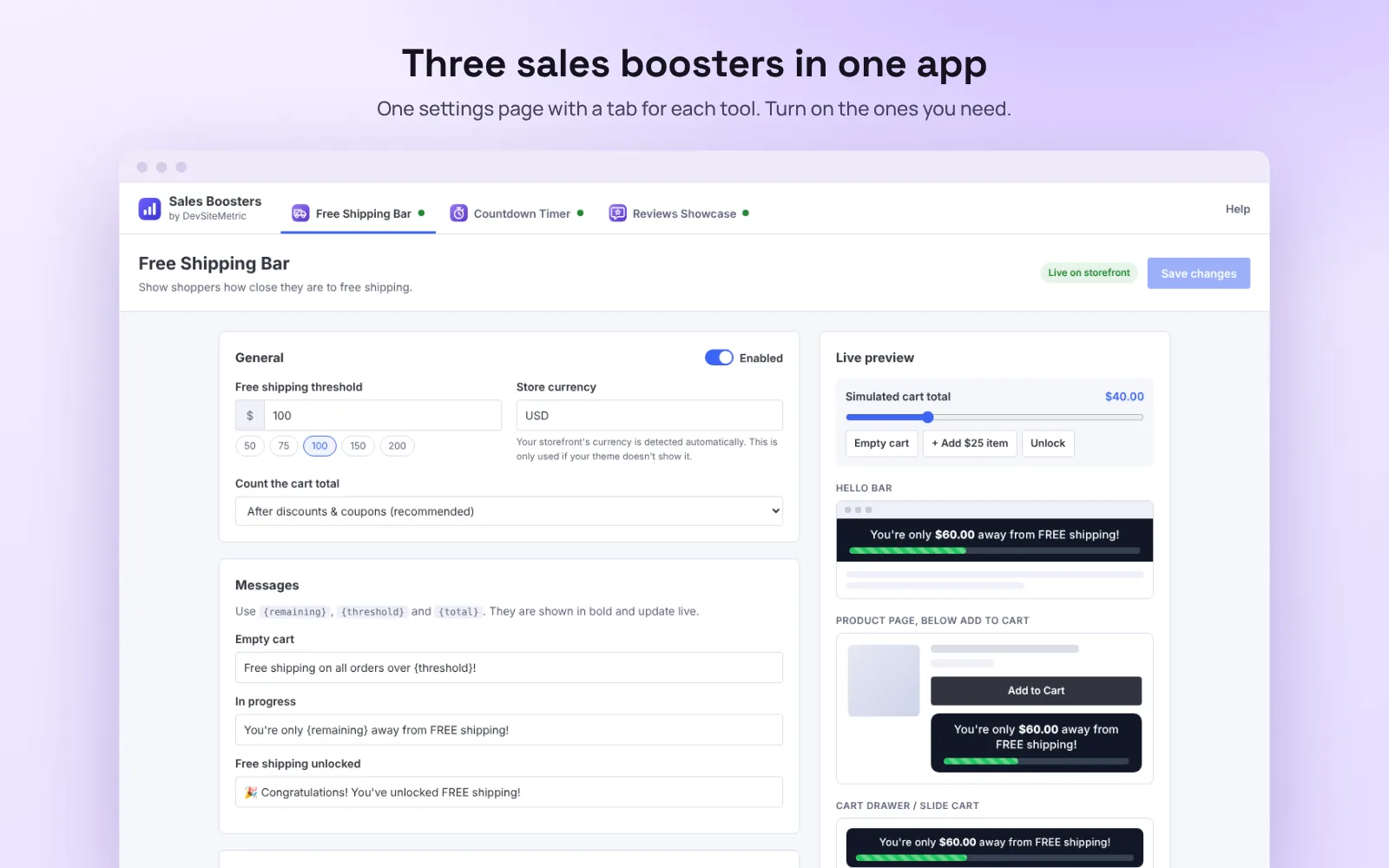
- Free Shipping BarOn after install, with a free shipping amount of 100 in your store currency. Change the amount to match your shipping rule and save.
- Countdown TimerShows nothing until you add a campaign.
- Reviews ShowcaseOff after install, so it doesn’t add a reviews section or create a page until you turn it on.
Free Shipping Bar
- In the Free Shipping Bar tab, enter your free shipping threshold, or pick 50, 75, 100, 150 or 200.
- Choose how the cart total is counted (after discounts is recommended) and where the bar shows: the hello bar, below Add to Cart and the slide cart.
- Edit the messages and colors if you want to, then click Save. The bar appears on your storefront within about a minute.
- Set up the matching free shipping rule in Settings › Shipping, with the same amount, so checkout gives the free shipping the bar promises.
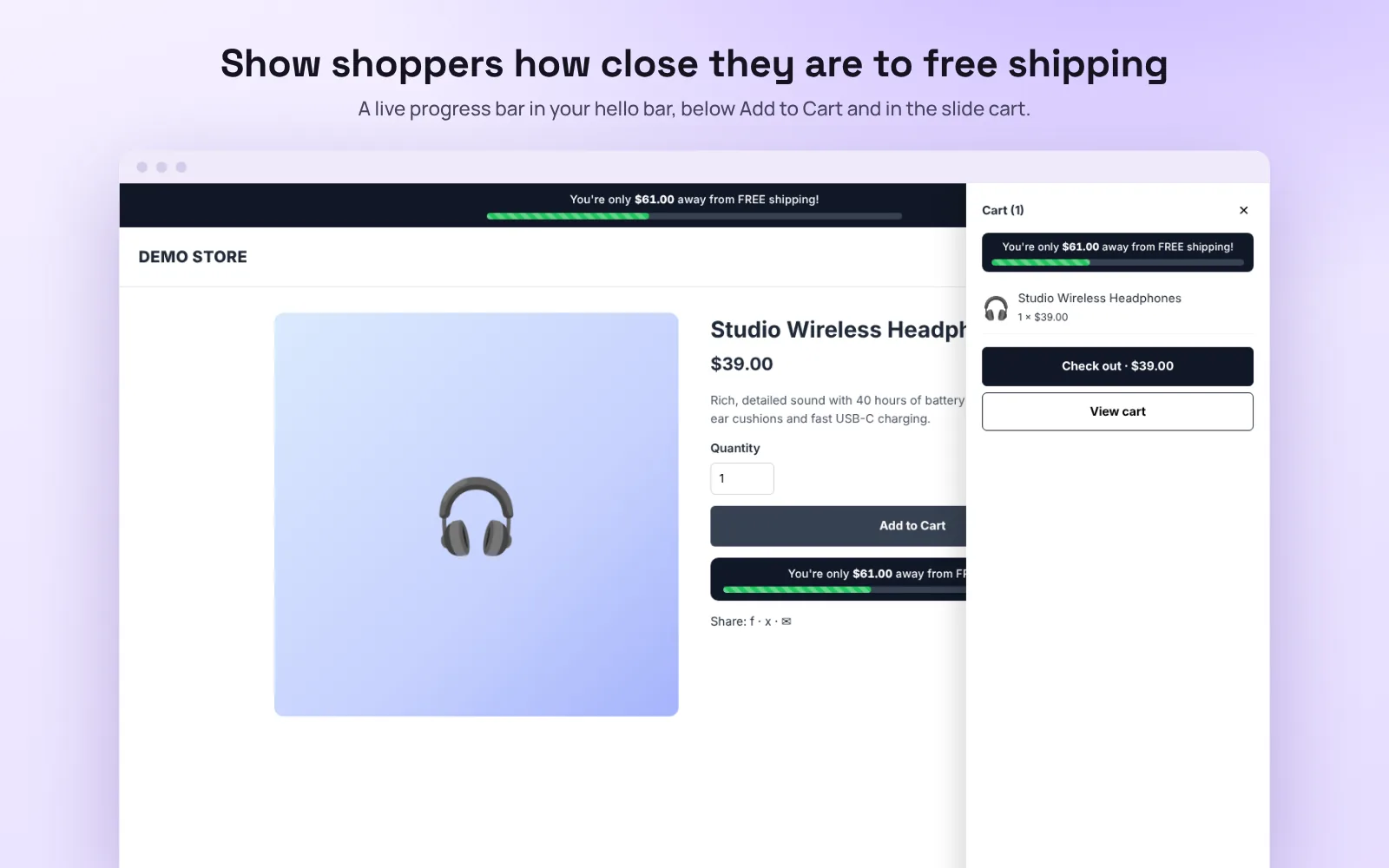
More detail, including troubleshooting: the Free Shipping Bar guide.
Countdown Timer
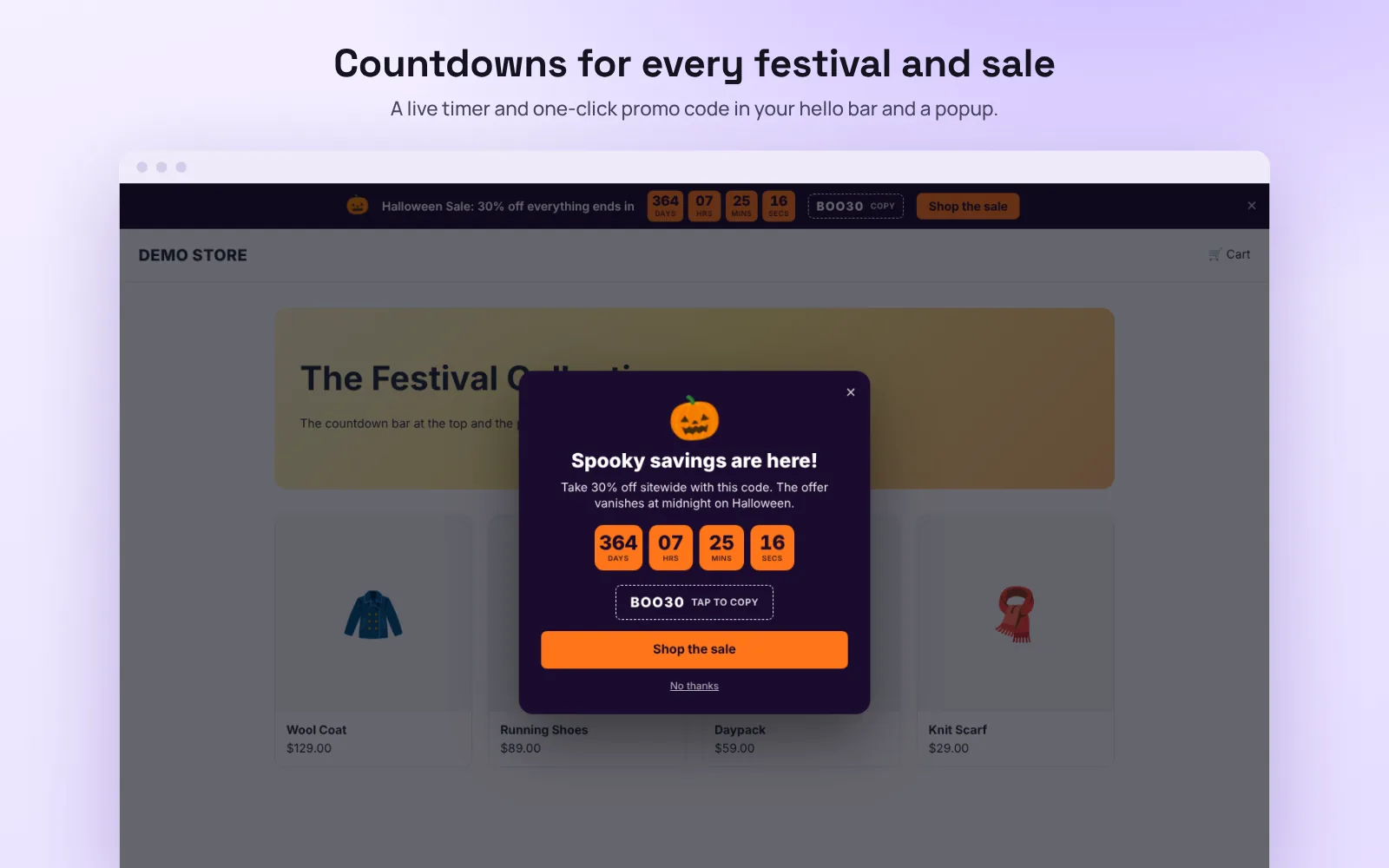
- In the Countdown Timer tab, click New campaign and pick a festival theme (Halloween, Black Friday, Christmas, New Year, Diwali, Valentine’s Day) or Custom.
- Set when it starts and ends, the promo code and the messages. Choose whether to show the hello bar, the popup or both, and when the popup opens.
- Click Save. Scheduled campaigns start and end on their own.
- Create the matching coupon in Marketing › Coupon Codes, so the code works at checkout.
Reviews Showcase
- Approve the product reviews you want to show in Products › Product Reviews.
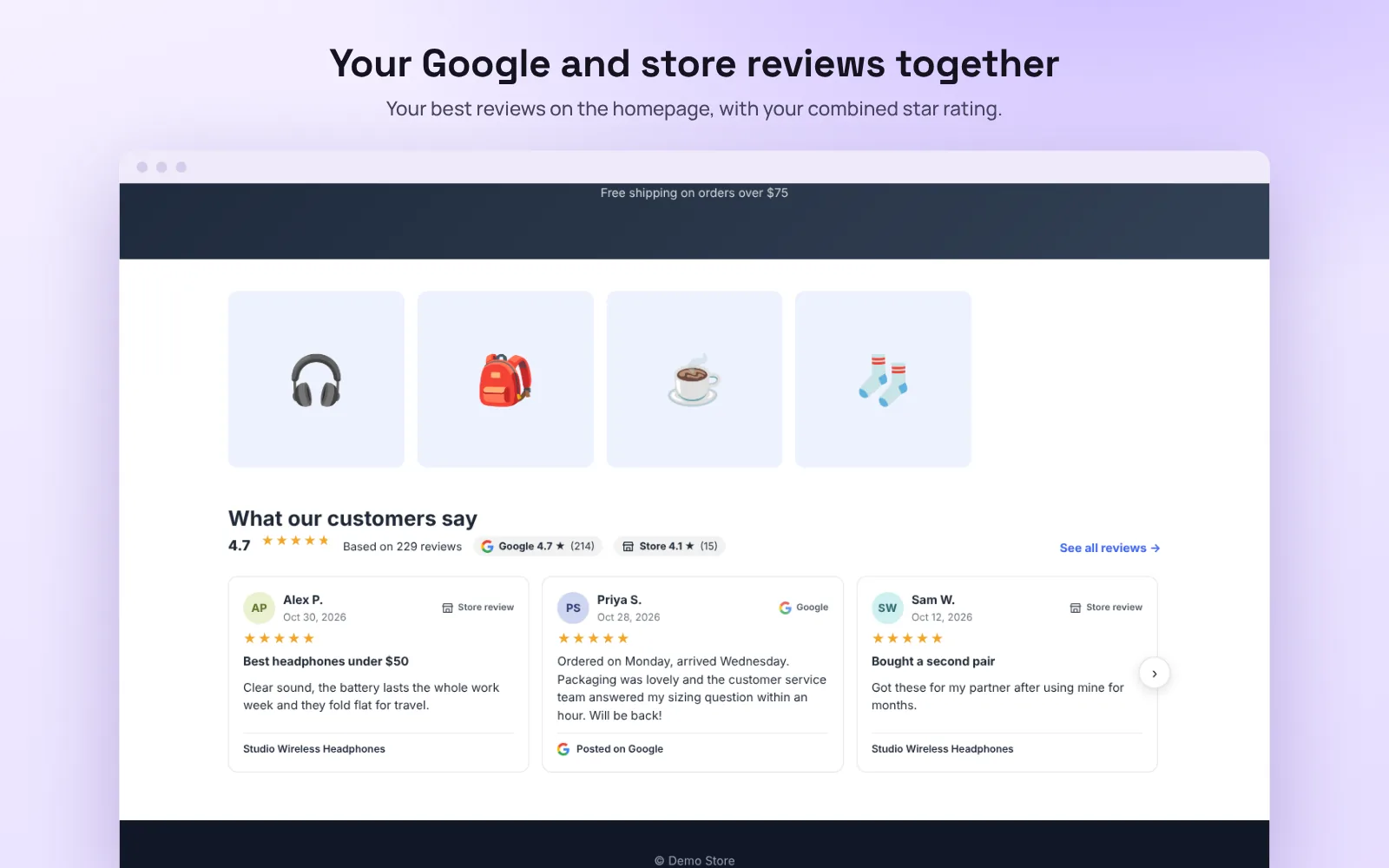
- In the Reviews Showcase tab, turn on Enabled. Click Sync now if your reviews don’t show in the preview yet.
- Choose the homepage layout, the minimum star rating, and the reviews page title and address (
/reviews/by default), then click Save. - The app creates the reviews page. Add it to your store menu in Storefront › Web Pages.
Google reviews (on request)
Want your Google reviews next to your store reviews? In the Google Business Profile card, tick Yes, I’d like to show my Google reviews, type your business name and city, and click Request Google reviews. We switch them on for your store, usually within a day. Then search for your business in the same card, pick it and save.
Google shares your star rating, your review count and up to 5 reviews with apps. The reviews page links shoppers to the rest on Google.
Permissions
BigCommerce asks you to approve three permissions. The app can’t read your orders or customers.
- Content: modify, to add the tools’ storefront scripts and, if you use Reviews Showcase, its reviews web page.
- Products: read-only, to read your approved product reviews for Reviews Showcase.
- Information & Settings: read-only, to use your store’s currencies and exchange rates for the free shipping amount.
The app never changes your prices, shipping, checkout or coupons. What the app stores.
Uninstall
Go to Apps › My Apps, find Sales Boosters and click Uninstall. BigCommerce removes the app’s storefront scripts, and we delete your settings and the app’s access to your store. If Reviews Showcase created a reviews page, delete it in Storefront › Web Pages. Your shipping rules and coupons stay as they are.
Need help?
Email support@devsitemetric.com with your store address, which tool it’s about and what you see. Pricing is shown on the app’s BigCommerce App Marketplace listing.