
BigCommerce apps › StoreKit

StoreKit: install and setup guide
Free Shipping Bar, Countdown Timer, Low Stock Alert, Delivery Timer, Reviews Showcase and Related Products in one app, on any Stencil theme, with no theme edits.
Install
You need a BigCommerce store and to be its owner, or a user allowed to install apps. Installing takes about a minute.
- In your BigCommerce control panel, go to Apps › Marketplace and search for StoreKit.
- Click Get this app, then Install.
- Approve the permissions BigCommerce shows (see Permissions), then click Confirm.
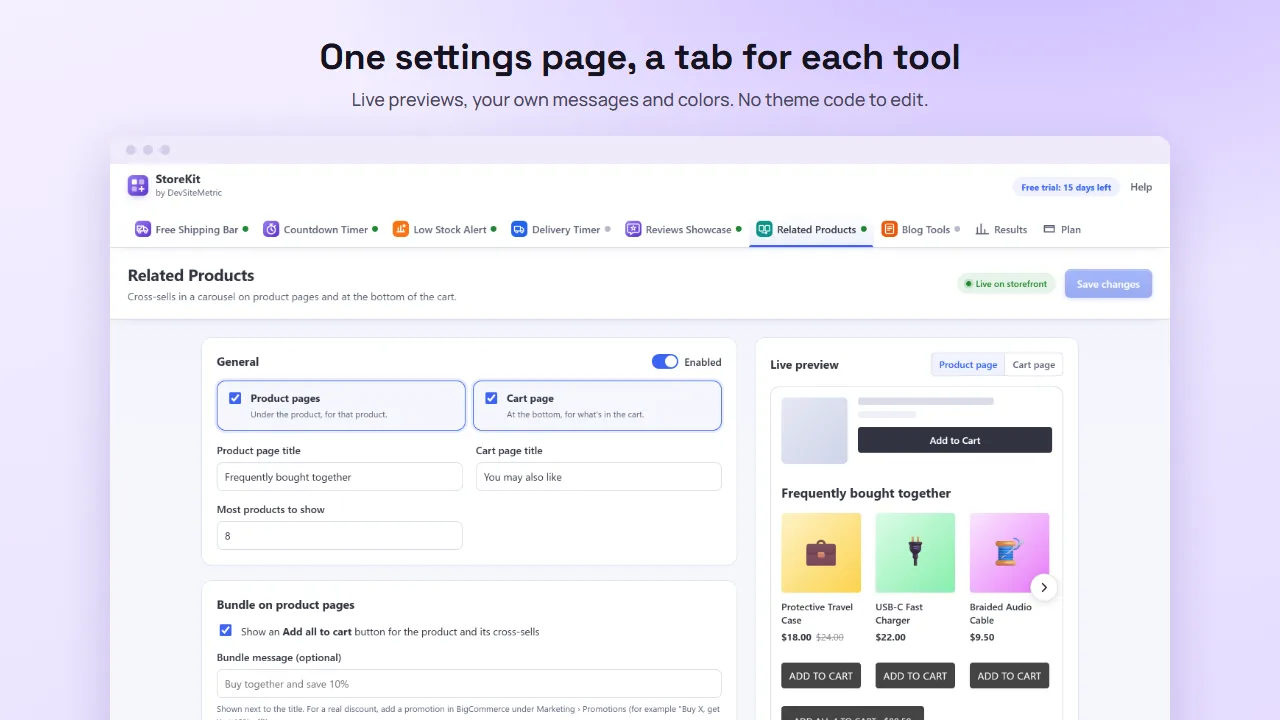
- The app opens on its settings page inside your control panel, with a tab for each tool. No separate account or login is needed.
The app works with Cornerstone and most Stencil themes. Headless storefronts, including Catalyst, are not supported.
Setup
Open the app any time from Apps › My Apps › StoreKit. Each tool has its own tab, its own Enabled switch and a live preview, so you can use any of them. A tool’s storefront script is added only while it’s switched on and in your plan, so tools you don’t use add nothing to your store. A green dot on a tab means that tool is showing on your storefront.
- Free Shipping BarOn after install, with a free shipping amount of 100 in your store currency. Change the amount to match your shipping rule and save.
- Countdown TimerShows nothing until you add a campaign.
- Reviews ShowcaseOff after install, so it doesn’t add a reviews section or create a page until you turn it on.
- Blog ToolsChanges nothing until you open a post and click Save to post.
Free Shipping Bar
- In the Free Shipping Bar tab, enter your free shipping threshold, or pick 50, 75, 100, 150 or 200.
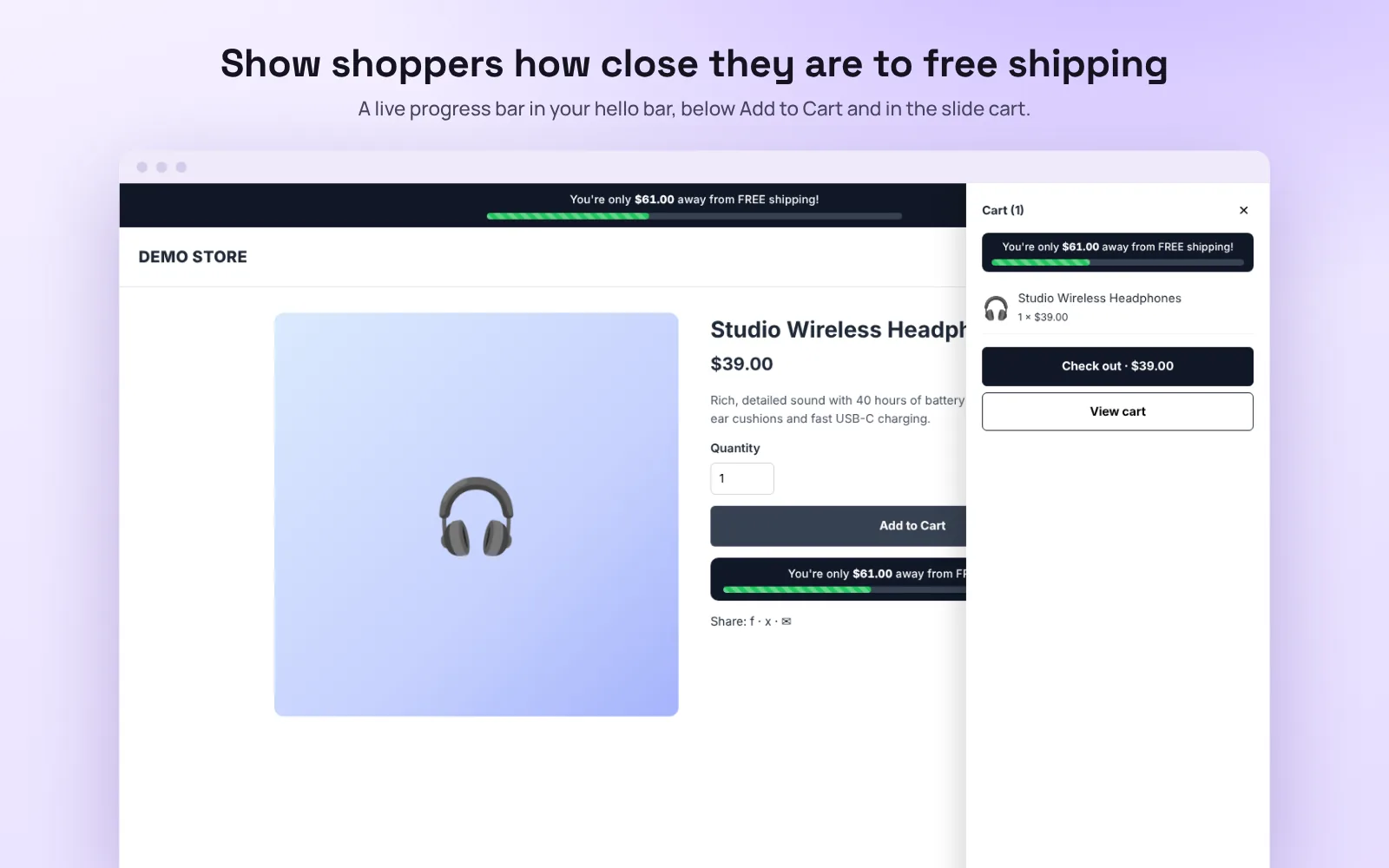
- Choose how the cart total is counted (after discounts is recommended) and where the bar shows: the hello bar, below Add to Cart and the slide cart.
- Edit the messages and colors if you want to, then click Save. The bar appears on your storefront within about a minute.
- Set up the matching free shipping rule in Settings › Shipping, with the same amount, so checkout gives the free shipping the bar promises.
More detail, including troubleshooting: the Free Shipping Bar guide.
Countdown Timer
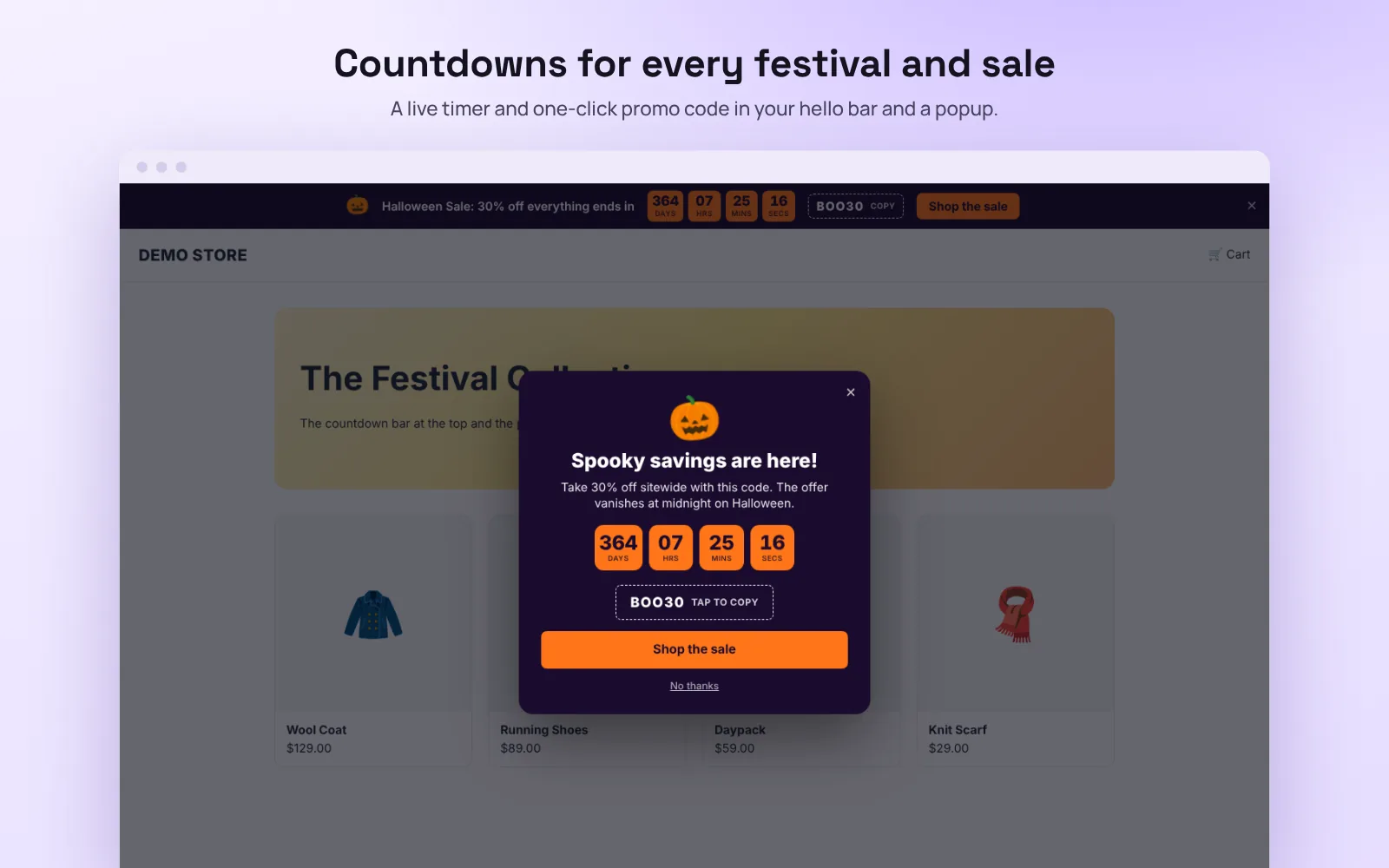
- In the Countdown Timer tab, click New campaign and pick a festival theme (Halloween, Black Friday, Christmas, New Year, Diwali, Valentine’s Day) or Custom.
- Set when it starts and ends, the promo code and the messages. Choose whether to show the hello bar, the popup or both, and when the popup opens.
- Click Save. Scheduled campaigns start and end on their own.
- Create the matching coupon in Marketing › Coupon Codes, so the code works at checkout.
Low Stock Alert
- In the Low Stock Alert tab, set Show the alert at or below, for example 5.
- Edit the message.
{count}is the number left, shown in bold. Add a different message for the last one if you like. - Pick a badge, bar or text, and your colours, then click Save changes.
The alert uses the stock you track in BigCommerce (Products › Edit › Inventory). For products with sizes or colours tracked per variant, it updates as shoppers pick options. Products that don’t track inventory never show it.
Notify me when it’s back
- In the same tab, turn on Notify me when it’s back and edit the heading, text and button.
- When a product, or the variant a shopper picks, is sold out, an email field shows under the price. Variants that are in stock don’t show it.
- Sign-ups are listed under Waiting for stock. We check your stock every 20 minutes (or click Check stock now) and, with Email shoppers when it’s back in stock on, send each shopper one email in your store’s name. You can also Download CSV and email them yourself.
Delivery Timer
- In the Delivery Timer tab, enter your order cut-off time and time zone: orders before it ship the same day.
- Tick your shipping days, add holidays (one date per line) and set how many business days delivery takes, at least and at most.
- Switch on Enabled and click Save changes. Drag Pretend it’s in the preview to check a weekend or a time after the cut-off.
Reviews Showcase
- Approve the product reviews you want to show in Products › Product Reviews.
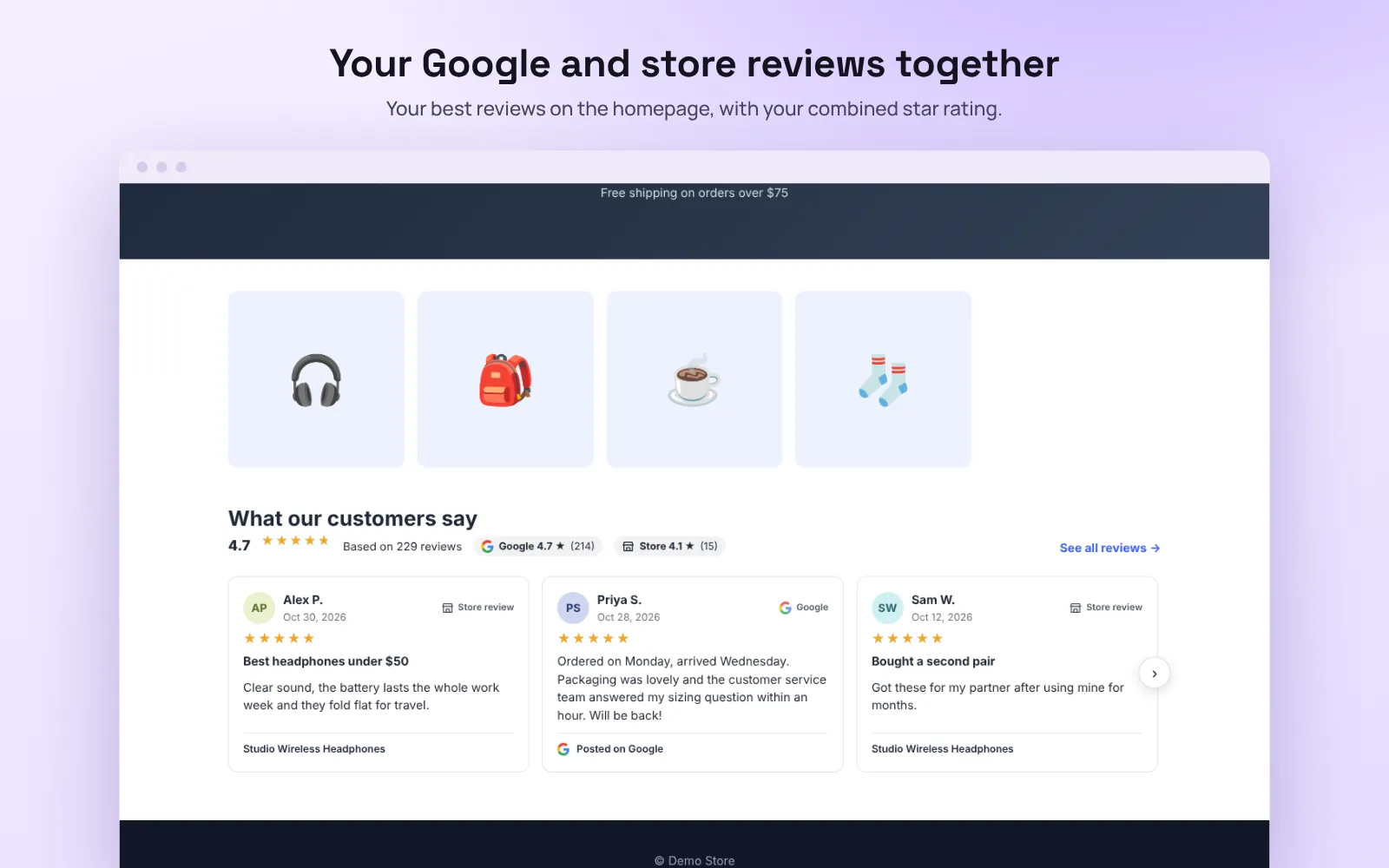
- In the Reviews Showcase tab, turn on Enabled. Click Sync now if your reviews don’t show in the preview yet.
- Choose the homepage layout, the minimum star rating, and the reviews page title and address (
/reviews/by default), then click Save. - The app creates the reviews page. Add it to your store menu in Storefront › Web Pages.
Google reviews (on request)
Want your Google reviews next to your store reviews? In the Google Business Profile card, tick Yes, I’d like to show my Google reviews, type your business name and city, and click Request Google reviews. We switch them on for your store, usually within a day. Then search for your business in the same card, pick it and save.
Google shares your star rating, your review count and up to 5 reviews with apps. The reviews page links shoppers to the rest on Google.
Related Products
- In the Related Products tab, keep Product pages and Cart page ticked, and edit the titles.
- Under Your cross-sells, search for a product, then add the products to show with it. These come first.
- Products without a cross-sell use the related products set in BigCommerce (Products › Edit › Related products), then best sellers from the same category.
- Click Save changes. The carousel appears under the product, and at the bottom of the cart for what’s in it.
The carousel uses your theme’s own product cards and buttons. If your theme has the Slick slider (most Stencil themes that show carousels do), it uses it, so it looks like your other carousels; if not, it uses a small built-in slider. It doesn’t change your theme. If your theme already lists related products on the product page, the carousel shows there only for products you’ve set cross-sells for, so nothing is shown twice. For a bundle discount, add a promotion in Marketing › Promotions and mention it in the Bundle message.
Blog Tools
Blog Tools changes only your blog post content, through BigCommerce, so it works on every theme and adds no storefront script.
- In the Blog Tools tab, open Authors and add the people who write your posts: name, other names used on posts (like “M. Lee”), photo address, role and bio. Pick a Default author for posts whose author name doesn’t match anyone.
- Optional: in Saved sets, make a product set (for example your best sellers) or a post set to reuse in many posts. Change a set once and every post using it is updated.
- In Posts, click Edit on a post. Under Product carousels, click Add a carousel, pick a heading, choose Above or Below, then a saved set or the products for this post.
- Switch on Author box and Recent posts if you want them at the end of the post. Latest posts update by themselves when you publish a new post; Posts I choose stay as you set them.
- Under Images in this post, fill in missing alt text (or click Fill empty alt text for suggestions) and an optional title.
- Check the Preview, then click Save to post.
To add the author box or recent posts to many posts at once, tick them in the Posts list and use Add author box or Add recent posts.
The app keeps the last 5 versions of every post it changes. Restore the previous version puts a post back as it was, and Take out the app’s blocks removes the carousels, author box and recent posts while keeping your image text. If you edit a post in BigCommerce’s editor, leave the app’s blocks as they are; if you delete them there, the app won’t add them back on its own.
Results
The Results tab shows what each tool did on your storefront, day by day: bar views and free shipping unlocks, timer views, button clicks and promo code copies, low stock and delivery message views, Notify me sign-ups, reviews views, and related product views, clicks and add to carts. Basic keeps 7 days; Premium, All Tools and Custom keep 30. The counts are anonymous totals.
Plans
Every store starts with a 15-day free trial of everything. On the Plan tab choose Basic ($5/month), Premium ($12/month) or All Tools ($20/month), or tick only the tools you want under Or build your own for a Custom plan. You’re charged on your BigCommerce invoice only when the trial ends. Switch, add a tool or cancel on the same tab. Compare the plans.
Permissions
BigCommerce asks you to approve three permissions. The app can’t read your orders or customers.
- Content: modify, to add and remove the tools’ storefront scripts, create the Reviews Showcase web page if you use it, and update the blog posts you save Blog Tools to.
- Products: read-only, to read your approved product reviews for Reviews Showcase, stock levels for Low Stock Alert, and product details for Related Products and Blog Tools carousels.
- Information & Settings: modify, to use your store’s currencies and exchange rates for the free shipping amount, and to read your BigCommerce account ID for billing. The app doesn’t change your store settings.
The app never changes your prices, shipping, checkout or coupons. What the app stores.
Uninstall
Go to Apps › My Apps, find StoreKit and click Uninstall. BigCommerce removes the app’s storefront scripts, and we delete your settings and the app’s access to your store. If Reviews Showcase created a reviews page, delete it in Storefront › Web Pages. Blog Tools blocks stay in your posts as plain content; take them out in the app before uninstalling if you don’t want them. Your shipping rules and coupons stay as they are.
Need help?
Email support@devsitemetric.com with your store address, which tool it’s about and what you see. Plans and prices are on the pricing page and the app’s BigCommerce App Marketplace listing.